'Asussy'
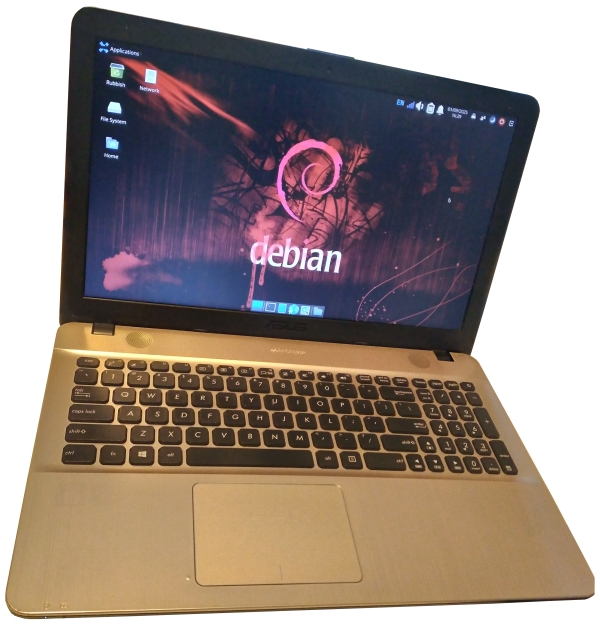
Asus Vivobook X541UJ
Current Status: Working fine
CPU: Core i5-7200U 3.1GHz
GPU: Geforce 920M
RAM: 8GB DDR4 (can take 16GB)
Storage: 500GB SDD (Crucial BX500)
Optical: DVD-RW
Current OS: Debian 13 KDE
Personal History
I think I bought this in 2017 when I was studying, it has been my main laptop since then. I did not do a tonne of research before buying, I just figured "oh it has a graphics card, it'll probably play games". It came with Windows 10 and had multiple issues with that including a total crash within the first year requiring a reinstall, and the hard drive became unusably slow/corrupted by 2024. Since building a PC in 2020 it had kinda gone to the wayside, until I started using it for trying out different distros. It has had MX Linux (which stopped booting one day), antiX saved it and was on there for a while after that. I also have put Debian 12 on it and fixed the issues that broke MX and other attempted installs. If you are looking at one of these second hand, don't. If you already have one, there's troubleshooting advice and links further down.
I have semi-recently swapped laptops with my partner, so this is her main one now. It is faster, more reliable and physically lighter than her old laptop (now my current one), which was having wireless/bluetooth issues. I wiped it and installed Debian 13 KDE from the live ISO, which has been a nice looking and relatively user friendly/stable experience that shouldn't need touching until 2030 (I retract part of this statement following my ordeal with it's wireless connection, lmao).
Likes/Dislikes
Theres a few things I like; it is very lightweight and easy enough to carry one handed while open, it has low-travel keys with a numpad, not bad for long periods of typing (although they are pretty bunched up around the arrow keys causing some mis-presses), the speakers are decent enough to watch something on without being super tinny, the screen is okay (at the precise viewing angle), and it's relatively quiet
Plenty I dislike too; I am surprised any time it survives a light fall as it feels like you could easily snap it in half over your knee, trying to replace/repair any part is a mission; everything is internal and like under or attached to something else, with a bunch of screws and plastic clips to go through. The battery is attached behind the motherboard but also has metal tabs under it as well, and you have to use so much force to remove it. I also had a few huge issues trying to get GNU/Linux on this thing; security key errors filling up the limited UEFI memory and preventing boot, it also wouldn't boot USB ISOs unless they had a specific file name (see solutions below). There are also like two dozen model numbers for various versions of this same laptop line, it makes looking up info quite annoying as you never really know if you have the correct guide or compatible part.
Usage
- Currently my partner's main laptop/computer. It does well with web browsing, video playback, and games that don't need a desktop GPU.
- We make use of it's portability; can easily attach it to a TV and use it's DVD drive, or plug it into a monitor for a better screen and more ergonomic setup.
- Digital Art; used with a Huion Kamvas 13 and it's proprietary Linux drivers. Also works perfectly well with the built in tablet drivers on the KDE desktop.
Troubleshooting/Repairs
- Black screen on startup OR endless 'PCIE bus' error messages preventing startup:
- Signing MOK Keys/Secure Boot Recommended:
- Live ISO won't boot (MokManager, mmx64.efi - Not Found)
- Constant Wifi dropout (Realtek RTL8723be Wifi card)
- Create a config file at '/etc/modprobe.d/rtl8723be.conf' and add the line 'options rtl8723be ant_sel=1 fwlps=0' OR 'options rtl8723be ant_sel=2 fwlps=0'.
- Create a config file at '/etc/NetworkManager/conf.d/wifi-powersave-off.conf' with the lines '[connection]' then 'wifi.powersave = 2'
- Add the parameter 'rtl8723be.fwlps=0' to the grub boot command at '/etc/default/grub', with a space between any others included. For me this line now reads: GRUB_CMDLINE_LINUX_DEFAULT="quiet splash pcie_aspm=off rtl8723be.fwlps=0" (incorporating the previous aspm=off parameter explained in another point above).
- OPTIONAL/ON SYSTEMD: Create a systemd service file at '/etc/systemd/system/rtl8723be-fix.service' with the contents as per this post
The solution that worked for me on Debian 12 and 13 was editing the grub boot command to: GRUB_CMDLINE_LINUX_DEFAULT="quiet splash pcie_aspm=off"
This was done in the initial grub screen during install. Debian then implemented that 'pcie_aspm=off' part into the grub boot command from that point onward (in the grub config file) without me needing to actually do so manually. This may not always be the case, and you are usually required to add it to the grub config file (/etc/default/grub) manually and update it (sudo update-grub) to make the change permanent. This is what I did with Debian 13 KDE live ISO, post-install, with manually editing then updating the grub config file working perfectly.
I can't remember where, but secondary to the last issue, some forums recommended using secure boot and signing your distro's MOK keys to prevent future boot errors. I signed the keys but seemed to have forgot to use secure boot, and it's been working fine. Most of the big popular distros support secure boot and can install their own security keys, see their documentation regarding that. (this was the case with Debian).
The solution that worked for me was renaming 'grubx64.efi' to 'mm64.efi' in the '/EFI/boot/' folder within the live ISO. Not every distro allows you to do this though, as they have more protections in place to prevent you from ruining your system. I was not able to edit it on a Linux Mint system, but I could on an antiX system with nano. Pointing the UEFI/BIOS to boot from a specific file (grubx64.efi) in the boot menu may work for some laptops, but it did not work for me on this laptop.
Solution(s):
Explainer: I found this article suggesting the system may be preferring an unconnected antenna port on the wireless card. The solution was creating a config file ('rtl8723be.conf') in /etc/modprobe.d and adding the line 'options rtl8723be ant_sel=1' OR 'options rtl8723be ant_sel=2'. Using the echo command in the article didn't work for me, but navigating to and opening a terminal in that folder then creating/editing the file with 'sudo nano rtl8723be.conf' did. I tried both variants (ant_sel=1 & 2), rebooted after each, and ant_sel=2 worked for me. The article also suggests opening the laptop and reconnecting the Wifi antenna to the other port, but when I opened this laptop there was only one populated connector on the board, labelled '1', the '2' slot was on the PCB but without a port (there is also only one antenna in this laptop). No idea why ant_sel=2 worked, maybe the physical labelling is different from the circuitry labelling? Anyway, this made it cut out less, but it was still disconnecting. I found other posts (linked below) mentioning adding 'fwlps=0' (FirmWare Link Power Save = off) to that config file to disable the firmware's ability to control the power state of the card (it likely wasn't turning it back on after reboots or suspend/sleep resumes). I also found another post suggesting to turn off Network Manager's wifi power save function (the 'wifi.powersave = 2' is the off setting). These in tandem seem to be working best for the time being. UPDATE: still not reliably working after suspend/sleep, I have since added the grub boot command and systemd service detailed above, in the hopes those will direct the card to not powersave upon resume. At this point if it still doesn't work, I'm going to go through the trouble of installing a new wireless card + second antenna through the chassis and around the screen >:(
Resources
- Here's a Best Buy review from 2017, the comment section is mostly people dissapointed by it.
- Ifixit repair guides (moderate). Not the exact model number we have, but everything is in the same place.
- UserBenchmark.com Asus Vivobook X541UJ Compatible Components List - might be useful, probably better to just use a search engine and find local sellers/websites though.
- [SOLVED] Black Screen on Install (15.04 & 15.10) Dell XPS 8900 ubuntu forums post (via wayback machine) - This was the solution I used for PCIE bridge error. Ubuntu forums migrated to a Discourse forum recently, so you either need to be logged in to view old posts or lucky enough that the one you need was archived >:(
- Asus Vivobook X541U ubuntu forums post (not archived) - I can't access this post without creating an account, but I believe it was the one which pointed me to the previous post's solution. Had it saved in my bookmarks.
- PCIe Bus error severity=Corrected askUbuntu.com post - Another potential solution for the same error, with a different grub boot parameter. Not the one I used, but I had it saved regardless.
- [SOLVED]import_mok_state() failed: not found Linux Mint Forums post - This was where I found the solution that fixed live USB ISOs not booting.
- Very weak WIFI signal with rtl8723be Wifi card on Linux (and Windows) ckirbach's Wordpress post (2017) - Solution that helped with this laptop's wireless card issues.
- Realtek Wifi Adapter RTL8723BE works initially but disabled after suspend - Ubuntu Discourse Forum post (2025), one of the sources I got the 'fwlps=0' option fix, plus the turn off NetworkManager's powersave function fix, and the systemd service file fix from.
- How to permanently turn off power management and avoid internet disconnections? - Manjaro Linux Forum post (2023), with instructions on how to turn off NetworkManager's powersave function.
- Wifi not working on Realtek rtl8723be wifi adapter - OLD (2016) askUbuntu.com question, one of the sources I got the 'fwlps=0' option fix from.
- [SOLVED]rtl8723be disconnects randomly - OLD (2018) Arch Linux BBS post, one of the sources I got the 'fwlps=0' option fix from.
- [Realtek rtl8723be] - Fix dropped Wifi connections - Garuda Linux Forum post (2024), that led me to the grub boot command parameter 'rtl8723be.fwlps=0' fix (specifically for resume from sleep).
Wireless Issues