'Lurface'
Surface Pro 7 (1866 model)
Current Status: Workin' fine (except camera)
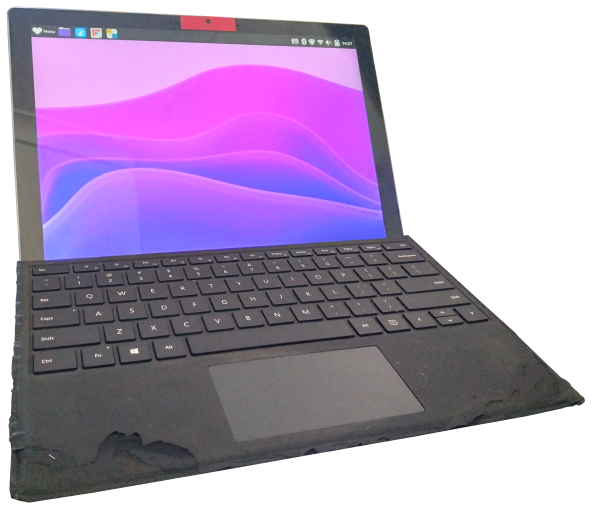
CPU: Core i5-1035G4 1.1 GHz x4
GPU: Iris Plus Graphics G4 (integrated)
RAM: 8GB (LPDDR4x soldered)
Storage: 128GB SSD (soldered)
Current OS: Debian 13 GNOME + linux-surface kernel
- Quick Overview/My Setup
- General Surface Device Notes
- Personal History
- Likes/Dislikes
- Usage
- Troubleshooting/Testing
- Resources
Quick Overview/My Setup
- GNOME has the best touch support and on screen keyboard
- Debian runs quite cool and supports secure boot
- The linux-surface kernel is required on this model for full touch-screen and rotate support, it also supports secure boot.
- The linux-surface kernel was pretty easy to install for me/this model, while following the distro-specific instructions (like a normal laptop distro install + a few commands and reboots after)
- This model does not have a functional camera, but work is currently being done to improve/fix this
- After install, I added the following gnome desktop extensions for a better tablet style layout: Dash to Dock (fixes the dock to left hand side) and Desktop Icons NG (DING) (allows icons on desktop). I also enabled 'Large Text' and 'Screen Keyboard' in Accessibility settings
- This device is several years old with it's original battery, it has about 2 hours of life if watching videos/using heavy graphics, and at least double that on simple web browsing/reading use.
General Surface Device Notes
did a lot of research on all surfaces, would be a waste to keep it in my head...
- If considering ditching Windows, it is essential to read the linux-surface Feature Matrix. Some older surfaces don't need the linux-surface custom kernel at all to run Linux, and will work 'out of the box'. For the best functionality, a Wayland desktop and secure boot are recommended.
- These things aren't built to last or to be repaired. At the very least the batteries will need replacing at some point, which is a difficult de-glue process. The Surface Laptops are even worse somehow
- AVOID the Surface 4 line, they have huge screen hardware failure rate.
- Probably best to avoid the Surface RT line too, it runs a 32-bit ARM, UWP only, version of Windows 8/10. There is a separate project for Linux support though in; Open Surface RT
- Older devices (SL1, SGO, SB1, SP5 and below) have no Windows 11 support
Personal History
Got this from a friend in exchange for fixing up and sending them a more conventional laptop. They found that the battery life and storage space was limiting what could be done with the thing when it wasn't plugged in, and the pre-installed Windows (10) had been getting slower and slower over time. I was interested in trying out the linux-surface stuff since first reading about it, but didn't want to outlay the money for a second hand device to experiment with (as many features are a bit fiddly or just totally unsupported). I initially tried out Debian 13 with KDE, but ran into many problems with the last straw being the on screen keyboard not being manually toggleable. I then switched to Linux Mint 22.2 Cinnamon which was easier to work with (although not without it's own issues), before finally settling on Debian 13 + GNOME. The linux-surface kernel extension thing was pretty easy to install and brought back the touch functions, but this particular model does not have camera functionality on Linux. It uses a specific image processing unit (IPU4) that hasn't been cracked/open-sourced yet.
Likes/Dislikes
So far it has been pretty easy to use, the weight isn't too bad (775g) but it's size and shape have you holding it differently (maybe more ergonomically) than a phone. The back stand thing works well, it will stay in place at any angle you move it to, so it's easy to angle how you want. Plus you can open the stand and use some combination of fingers on either side for a better grip on the whole thing. Battery life isn't too bad, especially for something I plan to just use as a tablet around the house; says like 6 hours when doing simple browsing/desktop stuff, and that drops to about 2 hours when watching video. The touch is okay, sometimes I need to make sure I'm making contact properly, but it's not unusable by any means (this has improved since switching to GNOME). Compared to much slower ARM tablets, the time lost double tapping on occasion is more than made up for by not waiting like 15-30 seconds for an app to open. And while ARM devices are able to be left on all day due to their lower power, this thing boots up in like 20 seconds or less so it's not a big deal.
Most of my dislikes surrounding this thing are to do with missing/buggy features that are technically more the fault of the hacky linux setup and not the hardware itself (will cover those in troubleshooting). I think the screen size is a bit big for a tablet, but it's not really a tablet, it's a 2-in-1 with a detachable keyboard. This thing is locked down and NOT easily servicable, it is very much a; heat gun to get in, every single component is soldered on, internal battery, type of 'modern innovative' device. The UEFI lets you install other operating systems, but apparently won't update itself unless you have Windows installed, I've also read that some people doing a linux-windows dual boot setup have had UEFI updates break the thing. The 'type cover' detachable keyboard that comes with this thing is covered in that shitty (now-peeling) pleather used on so many 'throwaway' (bit still expensive) modern devices now, it was also apparently $300 new, and still $100+ second hand for a genuine one.
Usage
- A household tablet/smartphone replacement for simple web browsing and video playback around home.
Troubleshooting/Testing
- Touch: just make sure you are making solid contact with the screen, I often find many light/little touches or flicks don't always register. I still don't know how to 'right-click' with touch, but the type cover is always nearby, so I can just attach it quickly and use the trackpad. Touch has improved since switching to Debian GNOME
- On-Screen Keyboard 1 (built in Mint applet): this has been a mission, and it's what put me off the Debian+KDE install. In Mint you can add the 'On-screen keyboard' applet to the panel which allows you to manually toggle the keyboard on and off. On-screen keyboard settings can be configured in the 'Accessibility' app, which is a bit clunky and I wish it was just an option on the keyboard UI itself, but the accessibility osk settings apply to whichever osk you have enabled, including the third party 'Onboard' if you have that open. The built in Mint osk has BAD layouts; 1 is a decently sized QWERTZ layout (can not be changed), 2 is a poorly spaced and tiny 'tablet' layout, 3 is an alphabetically arranged keyboard (???). However, certain dialog boxes ONLY work with this built in keyboard, including; the application menu search bar, and the password entry window when in session (like when installing updates). It also occasionally doesn't resize windows back to where before shrinking to accomodate the osk, which means you have to manually resize them with touch.
- On-Screen Keyboard 2 (Onboard): A million times better than the built in, well spaced keys with large font, and multiple themes/skins. Does not start on login automatically like the built in Mint osk (when added to panel), but I could probably fix that in some config file. The only downside to this osk is it not working in the application menu and the password entry pop ups. My solution to this is all very manual, I open onboard when I log in and keep the built in Mint osk in the panel (with the 'tablet' layout) so I can manually open either when needed. I usually keep the 'automatically open the osk when required' off while I have them both running, as it will open both if I touch a dialog box XD. If I give this to another person to use, I would just turn the 'automatically open osk' on and leave them with the Mint osk on tablet layout as it's easier to use overall, just not my personal preference. It is also a bit confusing, the desktop/login manager (GDM on Mint?) uses Onboard when first logging in (I maybe set it to do that and forgot), then a visually different osk if logging back in after the surface sleeps (which I think is onboard still, but transparent and themed to the login manager), and on top of all of that there is a built in microsoft osk that only pops up during boot/grub and in the UEFI.
- Manually toggleable osk: This is a requirement for using with touch on Linux because of some problem where the desktop doesn't register it needs to open the osk even though a dialog/search box has been selected. It effects random apps, apparently more so if they use an Electron/Chromium base and is more of a problem in wayland desktops. It is not exclusive to any distro or device, you will see multiple represented across bug reports, and the only solution is an osk that you can manually turn on (which I couldn't get working in KDE, so I dropped that install).
- Camera: Doesn't work with Linux on this particular surface iteration. Like I mentioned before, the Surface 7s use intel's 'IPU4' image processing unit. Every model before 7 uses IPU3 which has had open-source variants for a while, and funnily every model after the 7s uses IPU6 which intel is releasing some source code for and may be functional now/'soon'. This translates to the 7s having a smaller user base than all the other models combined using IPU3 and IPU6, and the niche of getting this working with Linux means an even smaller userbase. There is some work currently being done to use what information has been made available for IPU6 to kind of backport an open-source IPU4 driver (as far as I understand it), but as with any volunteer side-project for a very niche thing, there is no way to know when/if this will come to fruition.
- On-Screen Keyboard 3: With Mint 22.3 they overhauled their inbuilt osk so that it does not rely on libcaribou anymore. The layout should switch to suit the chosen system keyboard layout, and since updating this is the case, the layout is way better than the old 'tablet' or QWERTZ ones. However, and this may just be a problem with touch on my device or due to the recency of the release, but the new osk is UNSUABLY slow with a full second or more of input lag. Onboard still works perfectly well, except in the app menu search bar and in login/password entry screens. So for now, I am still stuck with using both. Updating the whole system via the mint-updater didn't break the surface kernel though, which is nice.
- On-Screen Keyboard 4/GNOME: Switching to Debian GNOME has solved this issue for now. The built in OSK in gnome actually functions and can be manually opened by swiping up from the bottom of the screen (for the Electron/Chromium apps bug).
Resources
- Microsoft Surface Pro 7 Repair - The ifixit page with a repairability score of 1/10
- Linux Surface Github page - home of the linux-surface project and their kernel extension for a variety of surface devices (a lot of their work gets upstreamed into the Linux kernel itself)
- Linux Surface Feature Matrix - a comphrensive guide to what features are supported and functional in Linux across multiple surface devices.
- Linux Surface Installation Guide - installation and setup guide for a variety of distros.
- Camera support (IPU4) - ongoing discussion post in the linux-surface github about IPU4 support, with a lot of recent chatter!
- FreeTube for Linux Does Not Support On-Screen Keyboard Maliit Input - Freetube github discussion post where I first found out about the Kwin event handler issue that screws up the osk automatically appearing on certain apps. It has links to three further bug reports from the arch linux and KDE websites with more information (and likely where any solution would come from).
- Surface Tension - My first blog post about this device shortly after getting it
- Surface Tension 2: GNOMEbody's Perfect - My second blog about it, detailing how GNOME has improved functionality overall.