Hey, this post is about some basic visual customization stuff on Linux Mint, specifically with the Xfce and MATE desktop environments. Cinnamon is already quite robust and easy to customize, as it is Mint's self-developed flagship desktop, and doesn't really need guidance. Xfce and MATE are developed by independent teams with their own visions and goals, these desktop environments are then heavily customized by the Mint team to make a mostly universal experience and theme across the desktops. However, I found a few little annoyances on first use of both of them with Mint, especially around scaling up the panel, menu, and font sizes. Things that were automatic on Cinnamon require manual adjustment through sometimes unclear methods, and less-intuitive menus. I feel that these issues could be enough to turn away a new user, so I wanted to share some fixes and resources.
This is not a 'ricing' guide/showcase and will just be focused on basic themeing and increasing the size of the overall desktop, as the out-of-box scaling is very small on higher resolutions and monitors. Also to be clear, I quite like all of these desktops, and Mint's versions of them. I have used Cinnamon in the past, Xfce in the present, and MATE occasinally on a few different setups. And like, yeah the desktop environments provided for free and made by mostly volunteers aren't as polished as ones made by multi-billion dollar companies, but they are weirdly close o_O
Sections
MATE
Increasing the desktop size in Linux Mint MATE is actually pretty easy, apart from one glaring issue. The start/application menu button (LM) does not scale, even though the icons offered are all .svg files ('scalable vector graphics' images). If you want one larger than 16x16 pixels, you need to trawl through the entire icons folder looking for larger icons, or scale up the desired image yourself. Below are steps I took to apply a basic dark+purple themeing and scale everything up for better readability, as well as how I fixed the menu icon scaling problem, which I found out how to do from this video by 'Linux for Seniors' - Linux Mint 22 - MATE - Resizing the Small Mint Menu Icon & Menu Tips (it's 22 mins, but explains it all much better).
Here is base Linux Mint MATE (in a VM)
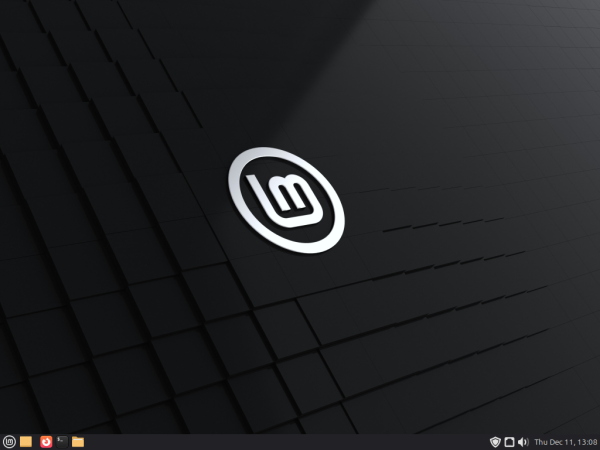
Looks like Mint, and is at the rather small default sizing. First steps;
- Opened the 'Appearance' applet from the start/applications menu, chose the Mint-Y-Dark-Purple theme and a purple background (very straight forward).
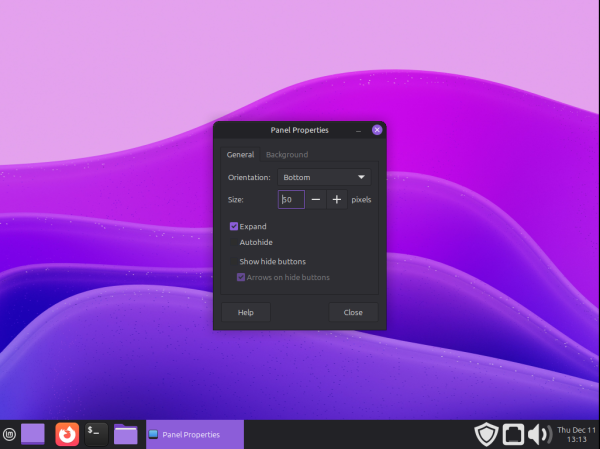
- Then right-clicked the panel and increased the size to 50 pixels. It might look oversized in this VM, but it is a pretty reasonable and very readable size on higher resolution monitors.
Immediately you can see (in the image below) that the menu button and the fonts of panel and clock don't automatically scale, the status icons do though.
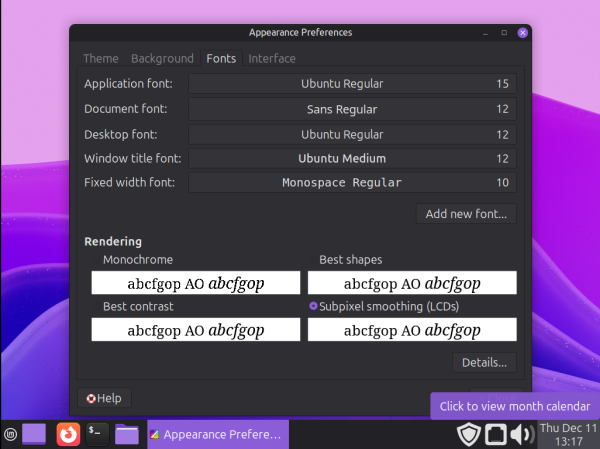
Font fix is easy, it's a tab in the 'Appearance' applet. Size 10 font is a wild default, I usually increase to 12-15. Here 15 has made the panel/clock more readable
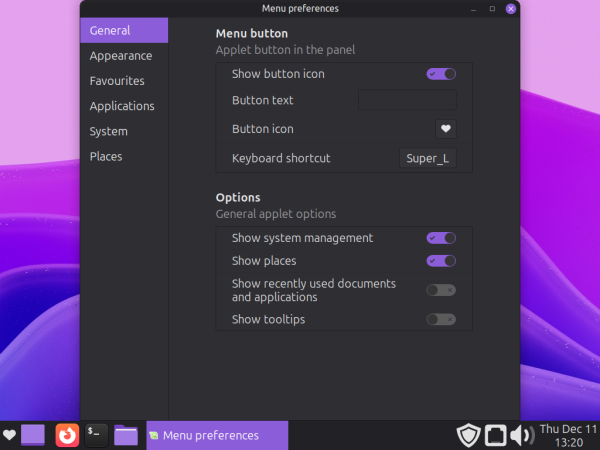
Menu button fix is a bit more involved, and since I will be custom resizing it anyway, I will choose a unique heart shaped symbol instead of one of the normal (LM) ones.
- Right-click on the menu button and open the menu preferences applet. Clicking on the 'Button Icon' image will allow you to choose from a large list of icons. (stored in usr/share/icons)
- You can painstakingly go through all of these until you find one that is the right size through trial and error (most icon sets have separate 16x16, 32x32, 48x48 sizes and more), or you can browse through until you find one you like and note it's file name. The heart symbol I chose was called 'emblem-favorite-symbolic' I think, and it is from the Papirus Dark icon set.
- I navigated to usr/share/icons in the file manager, and used Ctrl+F to search the icon name i wanted, then copied it to another folder ('Pictures', but can be anywhere).
- The icon I chose was 16x16 pixels, but was an .svg file. I opened the copy in GIMP, which presented a menu allowing me to resize/scale it (this occurs whenever you import an .svg image). With that I chose to scale it up to 48x48 pixels to suit my 50 pixel panel. Exported that as a .png (again, can save anywhere like the 'Pictures' folder, and .pngs work as icons they just don't scale, which is ironically a solution here anyway)
- I then right-clicked on the menu button to open the menu preferences again, and when choosing an icon this time, I clicked 'Browse' then navigated to where I saved my custom 48x48 heart image, and chose that. The last image below shows end results (with the applications menu open, in case you wanted to see what the MATE menu looks like)
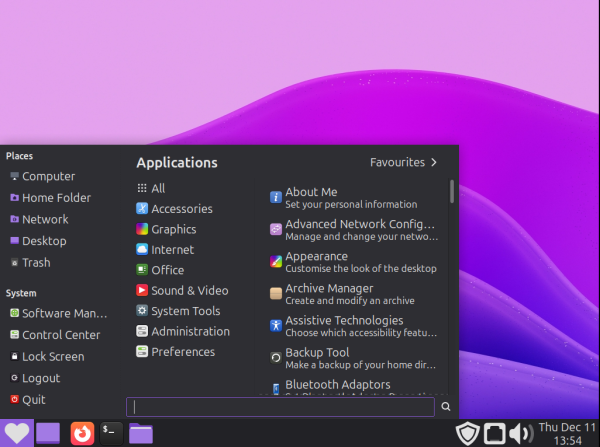
The way I did this was pretty busted, but it worked. The video I shared at the top does a better job of laying out the menu icon fix. MATE had an okay amount of automation with scaling stuff, but falls short of Cinnamon overall. It might be a simpler option for older computers if you don't care about Xfce's customization level, someone coming from Windows 7-10 would be able to navigate this desktop easily, and it uses slightly less resources than Xfce (almost not worth mentioning). MATE does support a lot of whacky compiz stuff though like the workspace/desktop cube, and Commodore OS Vision 3.0 is a good demonstration of what can be done with a MATE desktop.
Xfce
Increasing desktop size in Linux Mint Xfce requires a lot individual settings adjustments, but also gives you more precise control over the look of your desktop (more than MATE and Cinnamon imo). On my first use, I found this to be very frustrating and unintuitive, and it took a while to work out how to set everything. Below are steps I took to apply a basic dark+purple themeing and scale everything up for better readability.
Here is base Linux Mint Xfce (in a VM)
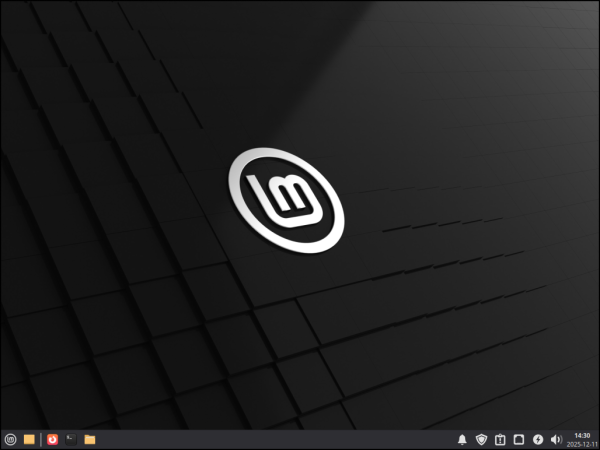
Looks like Mint, but the 'Power Manager', 'Notifications', and 'System Reports' icons are all present in the system tray. I think that the Power Manager might not be configured in Xfce to turn off when it registers it's on mains power, which will require manual removal later. The Notifications bell just stays there all the time in Xfce, and the System Reports is due to this being a new install without codecs or timeshift sorted out. Here are the steps I started with;
- Opened the 'Appearance' applet (from applications menu, or 'Settings Manager' icon at top of menu, then 'Look and Feel' section) and chose the 'Mint-Y-Dark-Purple' from the 'Style' tab. (At this point I should have chosen Mint-Y-Dark-Purple in the 'Icons' tab as well, but I overlooked this until later because Style automatically applies to Icons in MATE and Cinnamon).
- Next I opened the 'Desktop' settings by right-clicking the desktop itself for the option (also in Settings Manager>Look and Feel>Desktop) and changed the background to the same purple one from the MATE test.
- I then opened the Panel Preferences by right-clicking the panel for the option (also in Settings Manager>Look and Feel>Panel) and increased the size to 50 pixels in the 'Display' tab. You can see below that the panel and clock fonts, and the icons do not scale with the panel size.
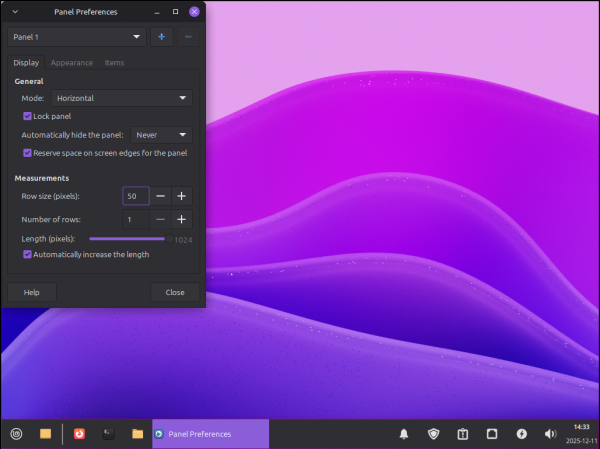
I then worked on improving the panel
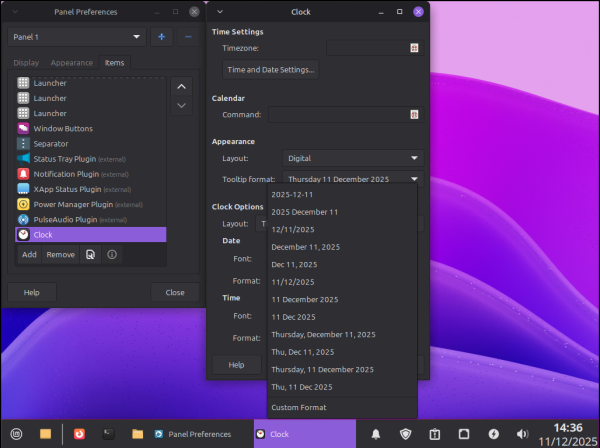
- Starting with the clock, in the Panel Preferences>Items tab, click the clock to highlight it, then the Edit button (wrench in document icon next to 'Remove'). I increased the font to 15, and changed the layout of the clock (DD/MM/YYYY date and kept 24h time). The Xfce clock gives you a lot of specific options for how you want the date and time layed out, that you can see in the image below (and which were absent from MATE).
- In the 'Appearance' tab of the Panel Preferences menu, there was an option to tick that scaled icons with panel size. BUT this does not work with every icon, specifically the 'Updates', 'System Reports', and 'Connection Manager' icons were still tiny. Looking back at the 'Items' tab, I could see that these did not have individual entries, and with their location (between the notification plugin and power manager plugin) I assumed these must be 'X-App Status Plugins'. X-Apps are a series of common apps made by the Mint team for ease of use, and for some reason have their own icon size configuration. I increased them to 48x48 by highlighting the 'X-App Status Plugins' then clicking the Edit button (wrench in document icon). See below.
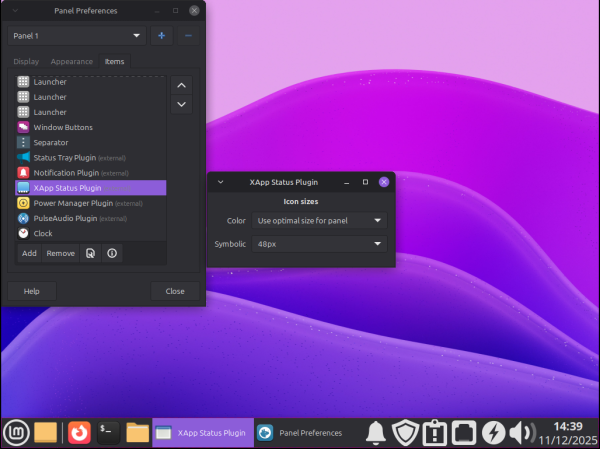
- I then decided to remove/resolve unnecessary icons. Clicked on the 'Power Manager Plugin' in the already open 'Items' tab of the Panel Preferences, then clicking 'Remove' as this is a mains powered PC and does not need a battery indicator. I then clicked on the 'System Reports' to resolve the issues so it's icon would go away
- After this I went back to the 'Appearance' applet and in it's 'Icons' tab chose the Mint-Y-Dark-Purple icons that I forgot about earlier, and in the 'Fonts' tab increased the 'Default Font' to 15, which applied to the panel text (like the open application names). See the results below
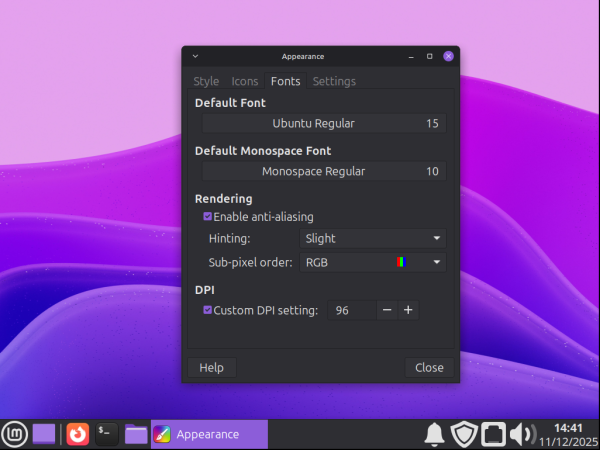
I felt that the menu was a bit cramped after increasing font size (see below), so I wanted to resize what I could with that.
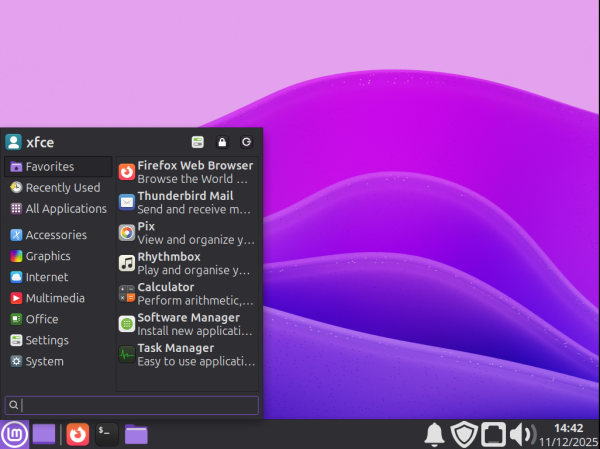
- Finding where the menu editor settings were was frustrating. First you have to open the Panel Preferences again (right-click the panel) then in the 'Items' tab click on the 'Whisker Menu' item and then the Edit button (wrench in document icon).
- In the Whisker Menu, I increased the Application Icon size to Normal, and the Category Icon size to Small. Then increased the menu width and height to 550x600 pixels (+100 px each). Images of the menus and the end esults are below.
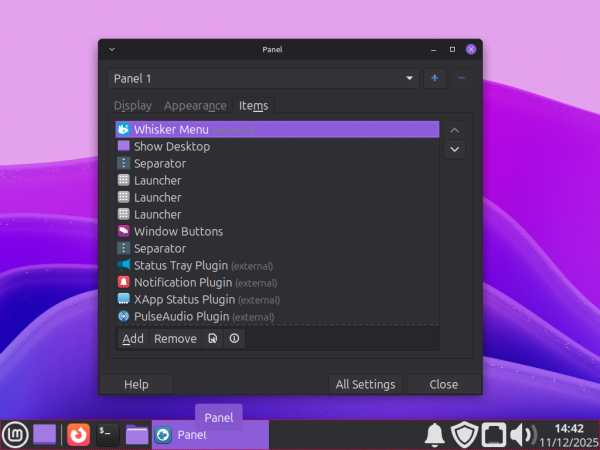
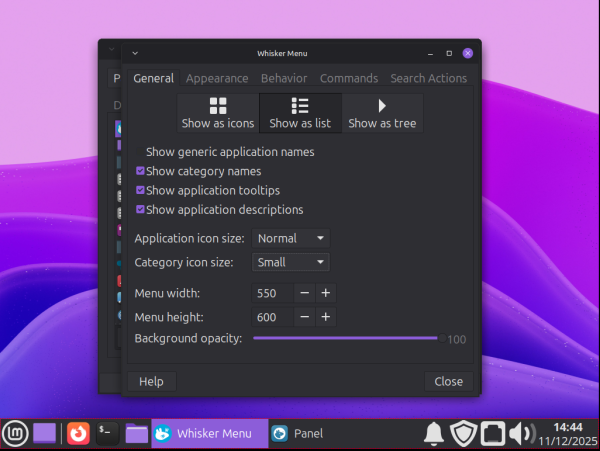
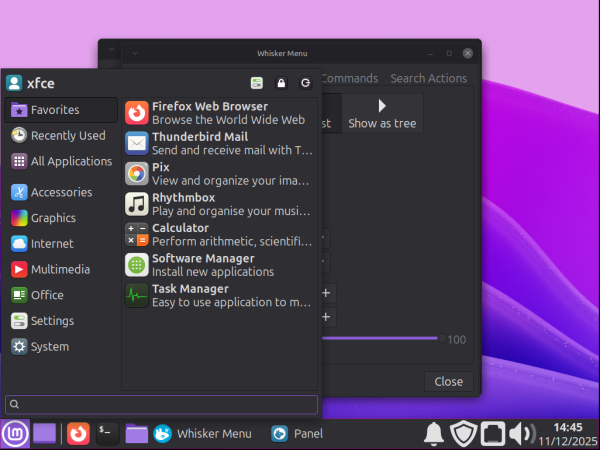
The final thing I changed was the font size of the window manager. You may notice in some of the previous images that the titles of many windows/menus were not increased with the 'default font' change.
- I opened the 'Settings Manager' again, and in the 'Look and Feel' section is an icon for 'Window Manager'. Clicking that opens a Window Manager specific menu, from which I increased the 'Title Font' to 15, with results below.
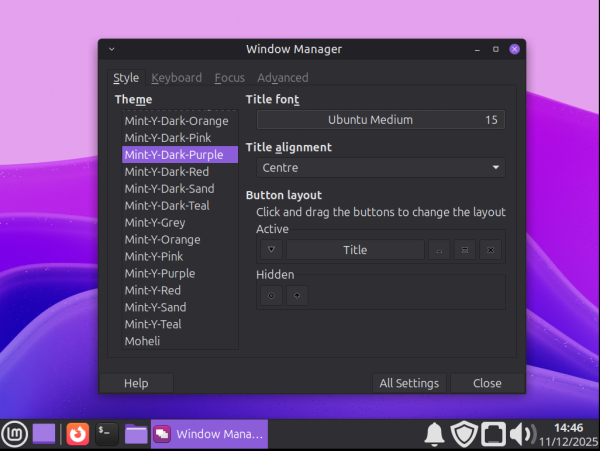
This basic customization is now complete. As you can see, there was a lot more fiddling around with settings in weird places to get this all done, but you do get access to far more customization settings than MATE. This works well for me, and is why Xfce is my favourite desktop environment, but it was a pain to get used to at first.
Thanks for reading :)